

To start using Claude Code, install it following the official instructions, open a terminal in your project folder, run the claude command and sign in to your account. It takes a few minutes. The harder part is safely trusting an agent with access to your code. Below is a step-by-step routine with a check after each step, rules for .env and git, scenarios for WordPress developers and the typical beginner mistakes. The tool’s interface and commands change, so check anything uncertain against the official documentation.
Key takeaways
- Claude Code is Anthropic's agentic terminal tool: it reads code, edits files and runs commands, so you need a clean git branch and a commit before you start.
- Start with Plan Mode (Shift+Tab) and small tasks you can verify with tests, a linter or git diff.
- Checkpoints are not a replacement for Git: they don't track changes made by bash commands or outside edits.
- Lock down .env and secrets with deny rules, give no access to production and don't enable –dangerously-skip-permissions outside an isolated environment.
- For WordPress, work on a local copy or staging, and a CLAUDE.md file with project rules will save you a lot of repetition.
Contents
- What Claude Code is and what you need before you start
- Installing Claude Code and the first run: 8 steps
- A safe workflow: branch, commit and rollback
- Permissions, .env and secrets: what to lock down before the first prompt
- Scenarios for a WordPress developer
- Common beginner mistakes and how to control context and costs
- Your plan for today: the first 30 minutes
What Claude Code is and what you need before you start
Claude Code is an agentic programming tool from Anthropic that runs in the terminal. It reads your codebase, edits files and runs commands at your request. Unlike a chat where you paste snippets of code, here the agent sees the project structure itself. That is exactly why a mistake in a prompt can touch many files at once.
Subscription or API key
There are two main ways to get access. The first is a Claude subscription (Pro, Max, Team, Enterprise): you pay per plan, not per request. The second is the API Console with pay-per-token billing: costs depend on how much work you do. Claude Code can also be connected through Amazon Bedrock and Google Vertex AI if your team already works in those clouds.
The right choice depends on your workload. A subscription is usually enough for first experiments; token billing makes sense when you need to track costs per project precisely. For current plans and limits, see the costs page in the documentation, since we don’t quote prices that go out of date quickly.
Availability in Ukraine and payment
Availability depends on Anthropic’s list of supported regions and on whether your payment method is accepted. Check this on the official website before buying. Bypassing restrictions with a VPN may violate the terms of use and your account risks being blocked, so it’s better not to build your workflow on that. For a comparison with other business assistants, see Claude or ChatGPT: which is better for business in Ukraine.
Installing Claude Code and the first run: 8 steps
Here is the sequence that minimizes risk. Don’t skip steps 1 and 4: they turn an agent’s mistake into a minor annoyance.
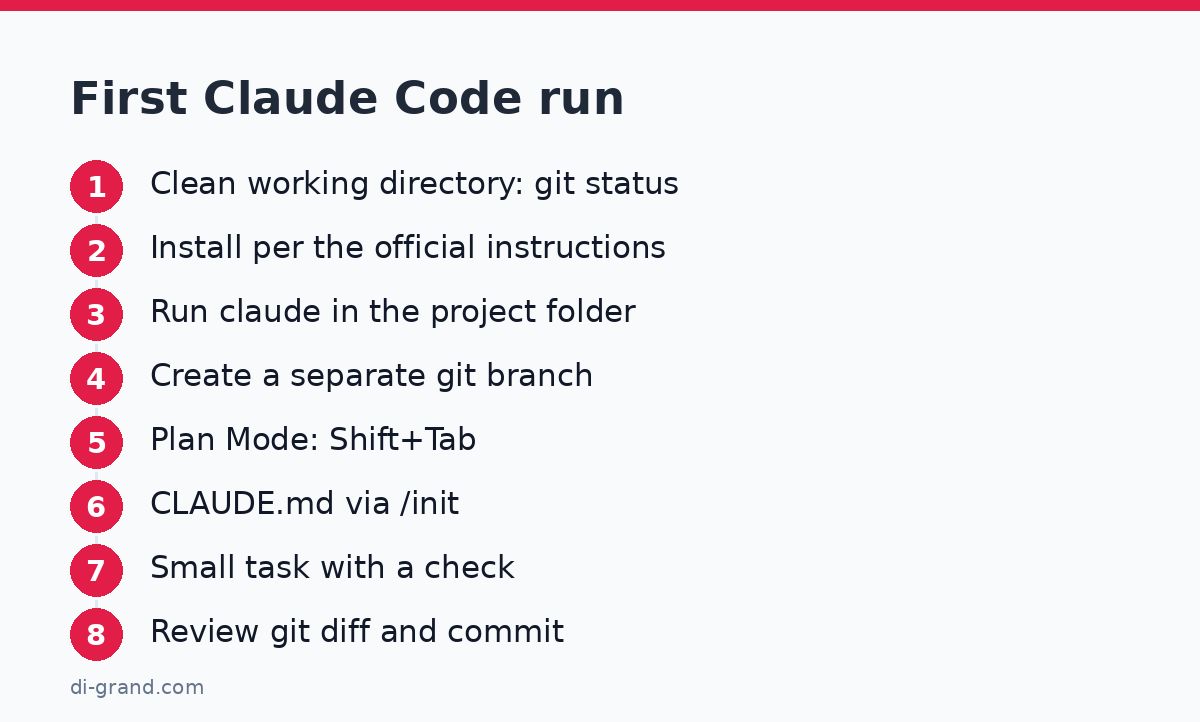
- Prepare the project. Run git status and commit or stash everything unfinished. Check: the working directory is clean. Common mistake: launching the agent on a project with a dozen uncommitted changes, after which you can’t tell your edits from the agent’s.
- Install Claude Code. For the current method and requirements, see the official quick start. Older guides mentioned Node.js 18+ and the npm install -g @anthropic-ai/claude-code command, but the recommended method may have changed. Windows, macOS and Linux each have their own nuances in the documentation. Check: claude –version prints a version.
- Go to the project folder and run claude. The tool will ask you to authenticate in the browser. Check: you see an interactive prompt line. You can switch accounts with /login. Common mistake: launching from your home folder, which gives the agent access to everything.
- Create a separate branch. For example: git switch -c ai/first-task. Check: git branch shows you are not on main or production.
- Turn on Plan Mode. Toggle it with Shift+Tab. In this mode Claude only explores the code and proposes a plan without making changes, so it’s ideal for getting to know a project. First prompt: “Describe the project structure, the main entry points and the commands for running tests. Don’t change anything.” Check: the answer matches what you know about your code.
- Generate CLAUDE.md with /init. The file is loaded at the start of every session. Review it by hand and remove the agent’s guesses. Check: the file has the correct build and test commands.
- Give it a small task with a check. For example: “Add an empty-field check to form X and run the linter.” Anthropic recommends giving Claude a way to verify its own result: tests, screenshots, a linter. Check: the agent shows what exactly it ran and what it got.
- Review the diff and commit. Run git diff and read every change. Check: there are no edits in files you didn’t ask about. Only then commit.
Here are the commands you’ll need within the first hour:
| Command | What it does |
|---|---|
| claude | Starts an interactive session in the current folder |
| claude “task” | Runs a single task without a long conversation |
| claude -c | Resumes the most recent conversation |
| /help | Shows slash commands |
| /init | Creates an initial CLAUDE.md |
| /clear | Clears context between unrelated tasks |
| /compact | Compresses a long conversation |
| /rewind | Restores files to a previous state (checkpoint) |
A safe workflow: branch, commit and rollback
By default Claude Code works in read-only mode and asks permission to edit files and run commands. This is the first layer of protection, but you shouldn’t rely on it alone: when you’re tired, you’ll start approving everything. The second layer is Git, and it should be your main safety net.
The workflow for every task looks like this:
- A branch from an up-to-date main: one task, one branch.
- A commit before the prompt: a point you can always return to.
- Plan Mode: read the plan and correct it before the first edit.
- Execution in small portions, running tests.
- Review git diff and only then commit.
Claude Code has checkpointing: the state of files is saved before each edit, and you can go back by pressing Esc twice or with the /rewind command. This is handy for quickly undoing a failed experiment. But there is an important limitation, described in the checkpointing documentation: changes made through bash commands and outside edits are not tracked.
If the agent ran a command that deletes files, renames folders or changes a database, /rewind won’t bring them back. Checkpoints are a “ctrl+Z” for file edits, not a backup. Projects with a database need a separate backup.
That’s why a commit before every task and a separate branch remain mandatory. If you don’t like the result, you simply delete the branch and start from a clean slate, without wasting time untangling changes.
Permissions, .env and secrets: what to lock down before the first prompt
Permissions are configured with allow, ask and deny rules in settings files (for example, .claude/settings.json in the project). A deny rule forbids an action entirely, ask requires confirmation, allow permits it without prompting. The exact syntax and file locations are described in the permissions section, so check it before copying any examples.
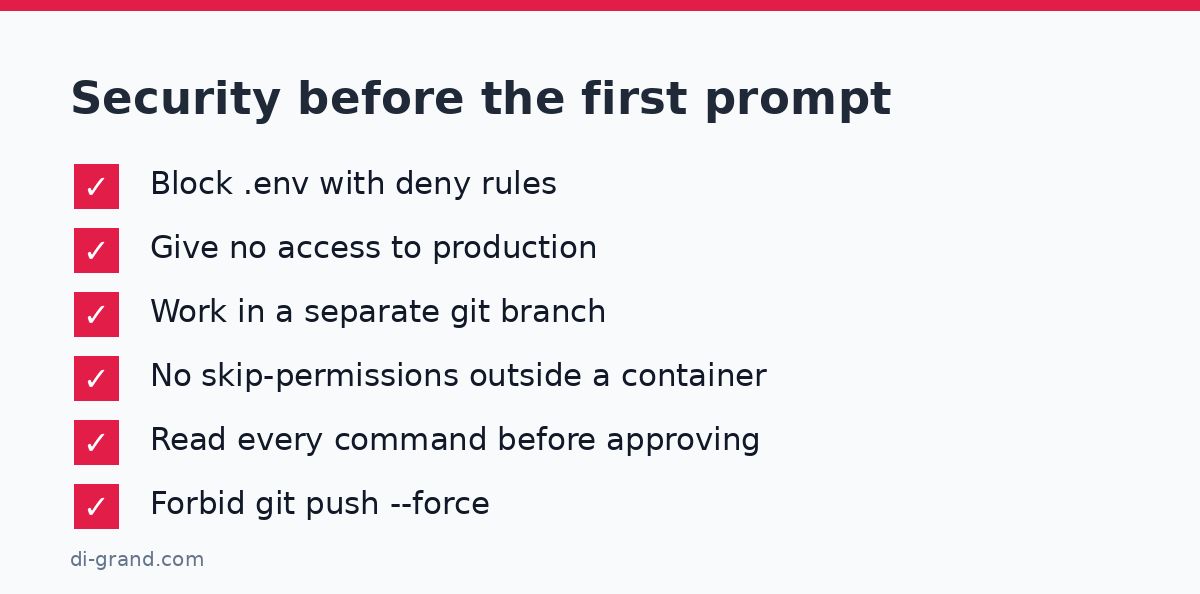
A minimal set of deny rules for most projects:
| What to forbid | Why |
|---|---|
| Reading .env and .env.* | API keys, database passwords and tokens must not end up in the conversation context |
| Reading files with secrets (keys, certificates, dumps) | Same reason: only what’s needed goes into the prompt |
| Delete commands (rm) | The agent must not erase files without your direct confirmation |
| git push –force | Overwriting history in a remote repository is one of the most painful mistakes |
| Direct git push to main | Publish changes yourself, after review |
A separate word about the –dangerously-skip-permissions flag: it turns off permission prompts. Anthropic recommends using it only in an isolated environment (a container or virtual machine) with no internet access or important data; see the security section. On a laptop with work projects, you don’t need it.
For extra control there are hooks: commands that run automatically before or after a tool is used. You can set them up to block dangerous actions or to run formatting and tests after every edit.
A brief note on privacy: the content Claude Code reads and processes is sent to Anthropic. For commercial code, review the data handling policy for your plan and, if needed, agree on its use with the client. Don’t give the agent access to a production database or servers: work only on a local copy or staging.
Scenarios for a WordPress developer
WordPress suits working with an agent well: the structure is familiar, there are plenty of hooks and routine tasks are common. The main rule is to work with a local copy of the site or staging, not the live site. It’s better to block wp-config.php, database dumps and the uploads folder from reading than to explain to the agent that there is “nothing secret” there.

Plugin or theme: a new feature
First ask for a plan in Plan Mode, then for the implementation. Example prompt: “In the child theme, add a [price_table] shortcode that outputs a table from the current post’s ACF fields. Use our style from CLAUDE.md, escape the output and don’t touch the parent theme. First show the plan of files you’ll change.” Check: in the diff only child theme files have changed, and the output is escaped (esc_html, esc_attr).
WooCommerce: customization without hacking core
For changes to the cart, checkout fields or emails, ask it to use hooks and filters rather than edit plugin files. Example: “Add a ‘Branch number’ field to checkout via woocommerce_checkout_fields, save it in the order meta and show it in the admin email. Don’t change WooCommerce plugin files.” Check: a plugin update doesn’t wipe your logic, because it lives in the theme or a separate plugin.
Code and security audit
The agent is good at reading large codebases and finding problems: missing nonces, unprotected database queries, unsafe output. Prompt: “Analyze the plugin in the my-plugin folder for XSS, SQL injection and missing capability checks. Don’t change anything, just compile a list with files and lines.” Treat the result as a hint, not a verdict: verify every finding by hand. General site protection measures are collected in the WordPress hacking protection checklist.
Preparing for changes on a live site
Before moving edits to production, make a backup and test the restore; how to set that up is described in the article on WordPress backups. And if you are building a project from scratch, the complete WordPress website development plan will be useful.
An example of a good CLAUDE.md for a WordPress project consists of short rules:
- Versions: the PHP, WordPress and WooCommerce versions we use.
- Standards: WordPress Coding Standards, function prefix dg_.
- Commands: how to run the linter (phpcs) and tests.
- Prohibitions: don’t edit core or third-party plugins, don’t touch wp-config.php.
- Git rules: branches named ai/task-name, commit messages in Ukrainian or English, no push to main.
Common beginner mistakes and how to control context and costs
Most breakages come not from a “bad model” but from how the work is organized. Here are the most common mistakes.
- A task that’s too big. A prompt like “rewrite the whole store on a new architecture” gives chaotic results. Break the task into steps, each with a check.
- No definition of done. Without tests, a linter or a screenshot, the agent decides for itself what “works”. Add a way to verify to your prompt.
- Vague context. Instead of “fix the form”, write which file, what behavior is expected and what’s going wrong now.
- Blanket approvals. Read every command the agent wants to run, especially those that write or delete.
- A forgotten CLAUDE.md. Without it you explain the same things every time: style, commands, prohibitions.
- One long session for different tasks. The context window fills up quickly and answer quality drops. Run /clear between unrelated tasks, and compress a long conversation with /compact.
- Working on production. Edits on a live site without staging and a backup are the most expensive mistake.
On costs: with a subscription you’re limited by your plan’s caps, with the API you pay for tokens, so big sessions and long context cost more. The practical measures are simple: clean sessions, specific prompts, small tasks. Also keep in mind that your choice of model affects both quality and cost; check the documentation for current models and limits.
If you need to bring AI into your development process or onto your website but don’t have time to set it up with safe rules, the DiGrand team can help with consulting, automation and WordPress/WooCommerce website development.
Your plan for today: the first 30 minutes
Make a copy or a separate branch of a small project and make sure git status is clean. Install Claude Code following the official instructions, run claude and ask it in Plan Mode to describe the project structure. Create CLAUDE.md with /init, add deny rules for .env and dangerous commands and give it one small task with a check. Finish by reviewing git diff and committing. If everything went without surprises, you can move on to more complex tasks.
FAQ
Can Claude Code break or delete my project?
In theory, yes, since it can edit files and run commands. By default it asks permission for such actions, and you can block dangerous operations with deny rules. The most reliable protection is a separate git branch, a commit before the task and a review of the diff.
How do I roll back changes made by Claude Code?
For files that Claude edited itself, there are checkpoints: press Esc twice or use the /rewind command. They don't track changes from bash commands or outside edits, so Git remains the main way to roll back: revert a commit or delete the branch.
Do I need a subscription, or is an API key enough?
Either option works: a Claude subscription (Pro, Max, Team, Enterprise) or the API Console with pay-per-token billing. Amazon Bedrock and Google Vertex AI are also available. A subscription is usually more convenient to start with, while the API is better when you need exact cost tracking.
What should I put in CLAUDE.md?
Build and test commands, code style, technology versions and repository rules: branch names, a ban on pushing to main, files that must not be changed. The /init command creates the initial file, but you need to reread it and fix it by hand.
Is it safe to give Claude Code access to .env?
It's better not to. Block reading of .env and similar files with deny rules, and use development keys with limited permissions. Don't connect the agent to a production database or servers; work on a local copy or staging.
How do I avoid wasting context and limits?
Break work into small tasks, run /clear between unrelated tasks and compress a long conversation with /compact. Write specific prompts with file names and the expected result so the agent doesn't read unnecessary files.
Leave a Reply