

An AI chatbot for a WordPress website can be added in three ways: install a plugin that connects to a model API, take a ready-made SaaS widget on a subscription, or commission a custom bot built on an API. For most small sites and stores, a plugin or SaaS is a sensible start: launch takes from a few hours to a few days. Custom development makes sense when you need complex integrations, strict control over data or non-standard logic. Below is a comparison of all three options by price, features and risks, a monthly cost estimate and a selection checklist.
In brief
- WordPress has three approaches: a plugin connected to a model API, a SaaS widget and a custom bot. They differ in payment model, control over data and amount of work.
- The cost of an API plugin depends on tokens, that is, on traffic and conversation length. SaaS is billed by subscription, and the AI agent is often charged separately per conversation.
- What matters most in a bot: answer quality in your customers' language, a knowledge base built from your content, handoff to a human, privacy and site speed.
- Start with a pilot on one group of questions, keep a conversation log and measure the share of resolved requests, not the number of messages.
Contents
Three ways to put an AI chatbot on WordPress
The difference between the approaches is not which model answers, but who runs the infrastructure, how you pay and how much you can change the bot’s behavior. Let’s look at each option separately first.

A plugin that connects to a model API
This is a plugin from the WordPress directory into which you paste an API key from OpenAI, Anthropic or Google. One example is AI Engine: it is described as an AI chatbot, AI agent and MCP server that works with OpenAI, Claude, Gemini and other models. Directory plugins are installed from the admin panel (Plugins → Add New), and the basic version is often free, while advanced features are sold in Pro.
You pay the model provider for tokens, and you pay for the plugin only if you need the Pro version. The upside is flexibility: you can change the model, the system prompt and the knowledge sources. The downside is that setup, key security and answer quality are all on you.
A SaaS widget on subscription
Services such as Tidio, Intercom or Drift give you a script or a WordPress plugin, while all the logic lives on their side. Tidio has a free plan and paid plans, and its AI agent Lyro is billed separately, by number of conversations. So calculate the price for your traffic from the current pricing page, not from the advertised “from” figure.
The main advantage of SaaS is a ready-made live chat, handoff to an operator, an inbox and basic analytics without development. The drawback is less control over the prompt, the model and where conversations are stored, plus dependence on the vendor’s pricing.
A custom bot via the REST API
Here a developer writes their own widget and a server side: it receives a request, finds the relevant fragments in your knowledge base, builds the prompt and calls the model API. This lets you connect WooCommerce, a CRM, inventory, order statuses or Telegram. An example of a technical implementation with Claude is in our article on integrating the Claude API with WordPress.
You pay for development once, then for tokens and support. The risks: a longer launch, security is your responsibility, and you need someone to update the code when the API changes.
Plugin, SaaS or custom: comparing price, features and risks
The table shows how the terms change depending on the approach. Specific amounts are left out on purpose: pricing changes, so take it from the vendors’ pages on the day you decide.
| Criterion | Plugin + API | SaaS widget | Custom bot |
|---|---|---|---|
| Launch speed | A few hours or days | An hour or two for basic setup | Weeks, depending on scope |
| Payment model | API tokens, sometimes a Pro license | Subscription, AI conversations may be billed separately | Development + tokens + support |
| Control over prompt and model | High | Limited by the service’s settings | Full |
| Knowledge base from your content | Available in many plugins, quality varies | Usually available: pages, FAQ, documents | Any search logic |
| Live operator | Depends on the plugin, often needs extra setup | Usually built in | Developed separately |
| Integrations (WooCommerce, CRM, Telegram, Viber) | Partly, via extensions or webhooks | Ready-made connectors, but not for all local services | Any, if there is an API |
| Main risks | Key leaks, unpredictable costs without limits | Vendor lock-in, price growing with traffic | Development cost, code maintenance |
| Best for | Blogs, service sites, first experiments | Stores and service companies that need chat with operators | Complex processes, high traffic, special data requirements |
If you are undecided, look at the task at hand. If you need to answer typical questions about delivery and payment, SaaS or a plugin will do. If you need to check order status and create a request in a CRM, plan for a custom build or a plugin with webhooks.
How much an AI chatbot for a website costs per month
Monthly costs consist of several parts: subscription or license, model tokens, hosting and the time a person spends on support. For a plugin and a custom bot, the main variable is tokens. Models charge input and output tokens separately, and the prices are published by the providers themselves, for example OpenAI on its API Pricing page.
Example calculation for 1,000 conversations a month
Let’s take assumptions that are easy to replace with your own numbers. A conversation has 6 requests from the customer. With each request, the model receives the system prompt, the retrieved knowledge base fragments and the conversation history, say 2,000 input tokens. The bot’s answer is roughly 250 output tokens.
- Input tokens: 6 × 2,000 = 12,000 per conversation, which is 12 million per 1,000 conversations.
- Output tokens: 6 × 250 = 1,500 per conversation, which is 1.5 million per 1,000 conversations.
Now plug in the price per million tokens for your chosen model. For illustration, take a made-up $1 per 1 million input tokens and $4 per 1 million output tokens (this is not a real rate): 12 × $1 + 1.5 × $4 = $18 per month. If the chosen model costs five times more, you get about $90. The difference between models is often bigger than between plugins, so pick the cheapest model that gives acceptable quality on your questions.
Before launch, set a monthly spending limit and alerts in the provider’s dashboard. This protects you from a sudden bill if scripts start hammering the bot.
What the budget is made of, by approach
| Cost item | Plugin + API | SaaS | Custom |
|---|---|---|---|
| Subscription or license | 0 or the Pro version of the plugin | The service plan, per the current pricing page | None |
| Tokens | Yes, paid to the model provider | Often included in the plan up to a limit, charged separately above it | Yes, paid to the model provider |
| Development | Setup, usually one-time | Minimal | The main one-time cost |
| Support | Plugin updates, reviewing conversations | Reviewing conversations and the knowledge base | Code updates, monitoring, reviewing conversations |
| What grows with traffic | Tokens | Number of conversations or operators | Tokens and server load |
Budget tiers
- Minimal: a free SaaS plan or a basic plugin version with an API and a spending limit. Good for checking whether users ask the bot questions at all.
- Mid-range: a paid SaaS plan or a Pro plugin, a knowledge base from the site, handoff to an operator, integration with a CRM or Telegram.
- Advanced: a custom bot with access to store data, permissions and analytics. The budget depends on the scope of work, so it is worth estimating after a short requirements analysis.
What really matters when choosing, and what doesn’t
The feature list in advertising is almost the same everywhere. The differences are in details that show up after launch.
Language quality and the knowledge base
Modern models usually work well in Ukrainian, but quality depends on the model and the prompt, so test on your own questions. Put together 20-30 real customer queries, including slang, typos and off-topic questions, and run them through the candidates. A rule-based chatbot answers by script and doesn’t understand unusual phrasing; an AI bot understands, but may make things up. That’s why it needs a knowledge base.
The basic approach is called RAG: the bot first finds fragments of your content (products, FAQ, delivery pages) and then builds an answer only from them. Check how the knowledge base is updated: automatically when pages change or manually. Outdated delivery terms in a bot do more harm than having no bot.
Handoff to a manager and integrations
The bot should be able to honestly say “I’m passing you to a colleague” and not lose context. Check whether the operator sees the conversation history, whether a notification arrives in Telegram or the CRM, and what the customer sees outside working hours. For a WooCommerce store, ask separately whether the bot can see stock and prices and whether it can show product cards.
Integrations with local services (Nova Poshta, Viber, KeyCRM, Bitrix24) are far from available everywhere. If they are critical, ask the vendor about webhooks and the API, not whether they have “integrations” in general.
Privacy and GDPR
A visitor’s messages are sent to the model provider or the SaaS service, that is, to a third party. Add this to your privacy policy, show a short data processing notice under the chat field, and don’t ask the bot for passport or payment details. Each provider has its own data processing terms, so read them carefully and consult a lawyer if needed. This matters especially for companies with customers in the EU.
Speed and security
A third-party chat script can hurt your Core Web Vitals. Load the widget after user interaction or with a delay, and then check the result using the guide on how to speed up WordPress for Core Web Vitals. Keep API keys on the server, not in the page’s JavaScript, and add rate limits per IP address. General site protection measures are collected in the WordPress hack protection checklist.
What not to prioritize: the model name in advertising, fine-tuning at the start and the number of “integrations” in a vendor’s table. For typical support questions, a good knowledge base and a clear prompt are usually enough. A comparison of models for Ukrainian businesses is in the article Claude or ChatGPT: which is better for business.
Payment is a separate matter. API availability and payment methods depend on the provider and the type of your card, so check this in advance on the provider’s page. SaaS services usually have straightforward subscription billing, but confirm the supported payment methods and currency for them too.
How to add a bot to WordPress: step by step
Below is the basic scenario for a plugin with an API. For SaaS, steps 1, 3, 4 and 7 stay, while the keys and model settings will be in the service’s dashboard.
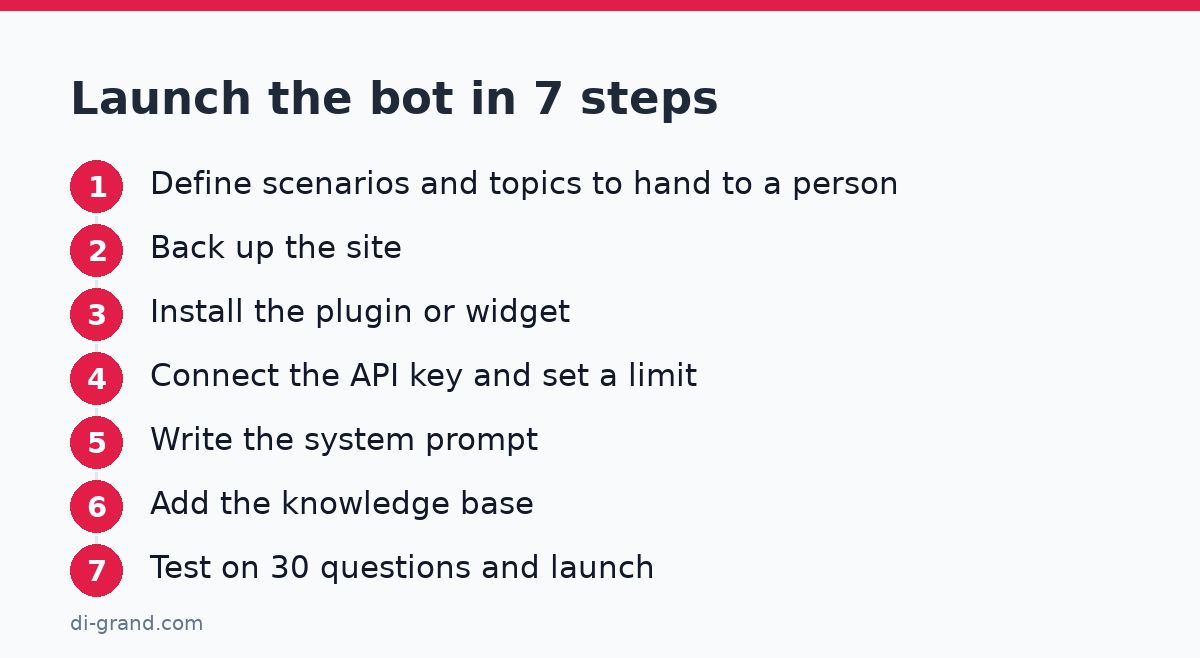
- Define the task. Write down 5-10 types of questions the bot should answer and 3-5 topics where it hands the conversation to a person right away (payment, complaints, returns). Common mistake: starting with “we want a bot” without a list of scenarios.
- Make a backup. Before installing plugins, save the site and the database as described in the article on WordPress backups. It’s better to try everything on a test copy first.
- Install the plugin or widget. In the admin panel open Plugins → Add New, find the plugin you need (for example, AI Engine), install and activate it. Check the date of the last update and compatibility with your WordPress version.
- Connect the API key. Create a key in the provider’s dashboard, paste it into the settings and set a spending limit right away. Common mistake: using one key for all of the company’s services.
- Write the system prompt. It defines the role, tone and boundaries. You can adapt the example below.
- Add the knowledge base. Connect the delivery, payment and returns pages, the FAQ and descriptions of key products. Remove outdated materials, otherwise the bot will quote old terms.
- Test and launch. Run 30 real questions, check the mobile version, handoff to an operator and page speed. Launch on some pages, for example only on delivery pages and in the cart, and then expand.
|
1 2 3 4 5 6 |
You are an online store assistant. Answer in Ukrainian, briefly and politely. Use only information from the provided knowledge base. If the answer is not in the knowledge base or the question is about payment, refunds or a complaint, don't make anything up: say that you are passing the conversation to a manager, and offer to leave a phone number or email. Don't ask for passport details or card numbers. Don't promise discounts or delivery times that are not in the knowledge base. |
Don’t publish the bot without the prompt restriction “answer only from the knowledge base” and without handoff to a person. Otherwise it may invent delivery terms or warranties, and your business will be responsible for that.
Common mistakes and a selection checklist
Most failed bot launches repeat the same mistakes. All of them can be avoided before installation.
- A bot without a knowledge base: the model answers off the top of its head and invents details.
- No spending limit and no spam protection, so the token bill grows from bot traffic.
- No path to a human: the customer goes in circles and leaves the site.
- Nobody reads the conversations: the bot’s errors go unnoticed for months.
- The tool was chosen by subscription price, without counting the cost of conversations and tokens.
- The chat script loads on every page and slows the site down.
Before deciding, go through a short checklist:
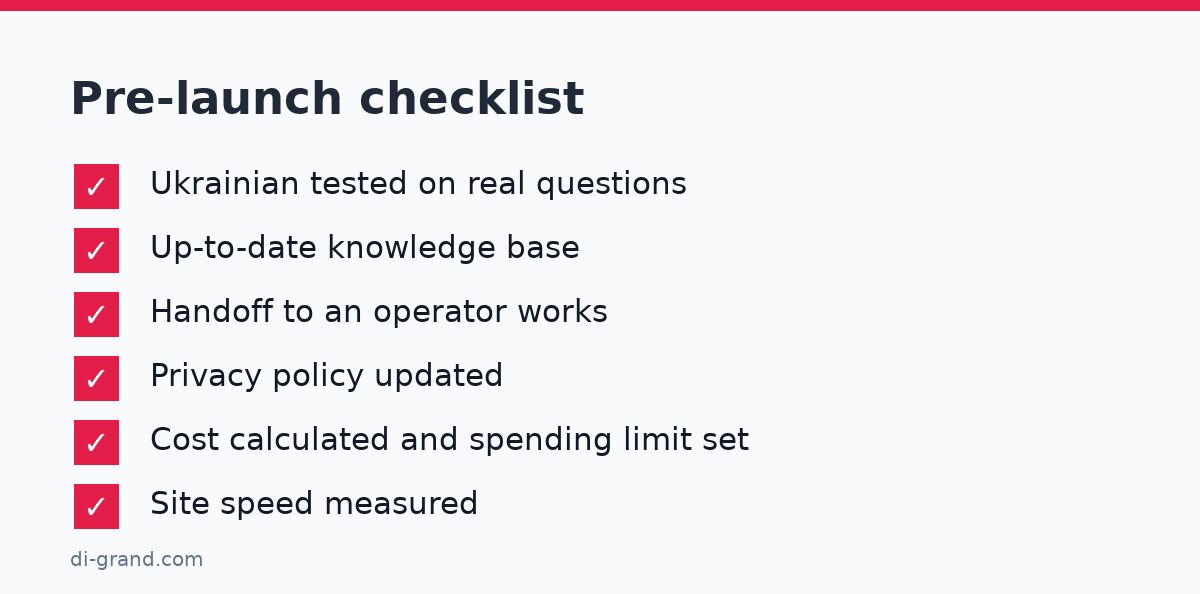
- 5-10 scenarios are defined, along with the topics the bot hands to a person.
- Answer quality in Ukrainian is tested on 20-30 real questions.
- There is a knowledge base and it’s clear how to update it.
- There is handoff to an operator with the conversation history.
- You know what data goes to third-party services, and the privacy policy is updated.
- The monthly cost is calculated for your traffic, and a spending limit is set.
- The service’s payment methods are checked for Ukraine.
- Site speed is measured before and after installation.
- Metrics are defined: share of resolved requests, handoffs to an operator, impact on leads.
The practical order of action is this: run a pilot on one type of question, read the conversations for two to three weeks, fix the knowledge base and only then expand the bot. If you need help choosing an approach, setting up RAG or integrating with WooCommerce and a CRM, the DiGrand team can help: order a consultation on implementing AI on your site, and we will propose an option for your traffic and budget.
FAQ
What is the best free AI chatbot for WordPress?
There is no single best one. SaaS services such as Tidio have free plans, and many plugins in the WordPress.org directory have a free basic version. But AI answers almost always carry separate costs for tokens or conversations, so a free bot in practice usually means a free start with limits.
How do I connect ChatGPT to a WordPress site?
The simplest way is to install a plugin that works with the API, such as AI Engine, create an API key in your OpenAI account and paste it into the plugin settings. Then set the system prompt and the knowledge base. Don't forget to set a spending limit in the provider's dashboard.
Can I train the bot on my site's content?
Yes, this is usually done through RAG: the bot searches fragments of your pages, products and FAQ and answers based on them. It doesn't require fine-tuning the model. It's important to keep the knowledge base up to date and restrict answers to its contents.
How do I reduce the risk of the bot making up answers?
Specify in the prompt that it may answer only from the knowledge base, and that if the answer isn't there, the bot should hand the conversation to a manager. Read the conversations regularly, add answers to the questions the bot got wrong and remove outdated materials. Errors can't be ruled out completely, so give critical topics to a person.
Will a chatbot slow down my site?
It can, because the widget loads an additional script. To reduce the impact, load it with a delay or after a user action, don't show it on every page and compare your Core Web Vitals before and after installation.
Leave a Reply